Create New Rules & Backtesting
Build custom payment rules with conditions and operators, backtest against real transaction data, and deploy with confidence.
Corgi Rule Engine lets you build rules on customized payment conditions and estimate their impact with backtesting. This page explains how to create a rule, validate it, and deploy it.
Create a rule
You create and manage rules from Rule Management. Select New Rule to open the rule builder, then:
Name the rule.
Choose the action.
Define the conditions.
1. Name the rule
Give the rule a clear name and an optional description. This helps your team understand what the rule does without opening it.
2. Choose the action
Pick what Corgi does when a payment meets the conditions:
Request 3DS — trigger an additional authentication step (such as 3D Secure) before the payment processes.
Allow — approve the payment automatically.
Block — reject the payment automatically.
Review — let the payment process normally, then send it to your team for manual review.
Corgi reads every rule as action if conditions. The action comes first, so the rule logic always reads from left to right. For details on how Corgi prioritizes rules when a payment matches more than one, see Corgi Rule Engine.
3. Define the conditions
Each condition has three parts:
Attribute — the payment field to evaluate, such as
card_countryoramount_in_usd.Operator — how to compare the attribute to your value.
Value — the number, text, or set to compare against.
The operators available depend on the attribute type.
| Operator | Matches when |
|---|---|
= | The attribute equals your value exactly. |
!= | The attribute does not equal your value. |
IN | The attribute matches any entry in a List, for example :card_country: IN @restricted_countries. |
INCLUDES | The attribute contains the value you specify. Useful for text or multi-value fields. |
LIKE | The attribute matches a text pattern (partial match). |
For numeric attributes such as amount_in_usd, you also get comparison operators: greater than, less than, greater than or equal to, and less than or equal to.
To match an attribute against many values at once (for example, a set of VIP emails or a list of blocked card countries), use the IN operator with a List instead of repeating individual conditions. See Rules based on lists on the Corgi Rule Engine page for details.
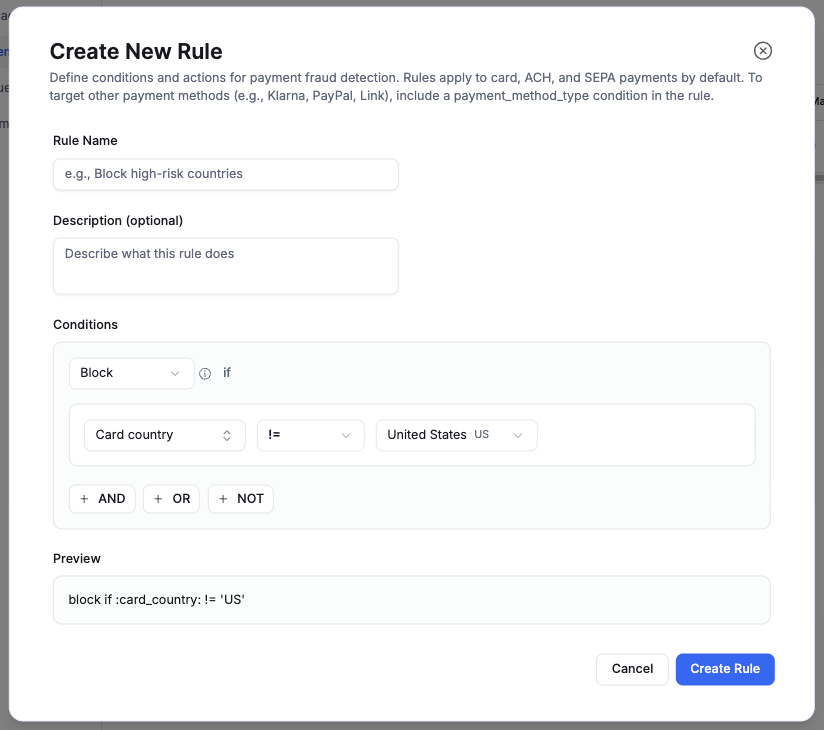
As you build, the Preview at the bottom shows the compiled rule. For example:
block if :card_country: != 'US'
This lets you confirm the logic reads the way you intend before you move on.
By default, rules apply to card, ACH, and SEPA payments. To target other payment methods (for example, Klarna, PayPal, or Link), add a payment_method_type condition to the rule. See Supported attributes for the full list of values.
Build complex rules
Most rules combine more than one condition. How you connect them determines which payments the rule matches.
Multiple conditions with the same connector
When every condition uses the same AND or OR logic, you don't need groups. Use AND when all conditions must be true, and OR when any one of them is enough.
For example, to block payments that come from a specific country and are over $500:
block if :card_country: = 'AE' AND :amount_in_usd: > 500
Mixed connectors (AND and OR together)
When you mix AND and OR in the same rule, use Add Group to nest conditions and make the precedence explicit. The group makes it clear which conditions bind together.
For example, to block high-value payments that are either from a brand-new customer or flagged as elevated risk:
block if :amount_in_usd: > 500 AND (:hours_since_customer_was_created: < 24 OR :stripe_risk_level: = 'elevated')
Without the group, the AND and OR would bind in an ambiguous order. Grouping removes that ambiguity. Add conditions and nested groups with Add Condition and Add Group, set each group's connector to AND or OR, and watch the Preview update to confirm the logic.
Backtest before you deploy
After you finish building a rule, Corgi simulates it against your last 6 months of real transaction data and estimates how it would have performed before it goes live. This lets you deploy with confidence.
The backtest metrics depend on the rule action because different actions change payments in different ways.
| Rule action | Metrics shown | What they tell you |
|---|---|---|
| Block, Allow | • Matched transactions (count and % of volume)<br>• Incremental auth rate<br>• Incremental dispute rate<br>• Net revenue impact | These actions change the outcome of a payment, so the backtest estimates the marginal effect of adding this rule on top of your live rules. An effective rule yields positive net revenue impact. |
| Review, Request 3DS | • Matched transactions (count and % of volume)<br>• Matched volume<br>• Dispute rate (matched)<br>• Fraud rate (matched) | These actions do not block a payment but add review load for your team or authentication friction for the customer. The backtest profiles the risk of the matched cohort and the operational cost. |
Edge cases and limitations
The backtest is an estimate from the past, not a guarantee. Three exceptions are worth noting:
Known blocklists and policy rules. When you block known-fraud cards, emails, or restricted regions for policy or compliance reasons, deploy the rule regardless of what the backtest shows. The matched counts and net revenue impact can look small or even negative. The bad actors may have little recent activity, or they may have already been refunded or disputed inside the 6-month window. The rule is still doing its job.
Thin history. Rules built on brand-new metadata or rarely-seen attributes have little to simulate against, so the sample may be small.
Low matched counts. A handful of matched payments is a small sample. Read the rates with caution.
Deploy your rule
You can deploy a rule after you validate the backtest result. The new rule takes effect on future payments only. It does not change anything already processed.
If you deploy a Review rule, matching payments process normally and then appear in your Review Queue for your team to approve or refund.
Last updated: 2026-07-21